Docs / Aim Trainer
How to Join Gamemodes
There are three ways to join NotGR4VE gamemodes: through the in-game lobby, Discord or the website.
Last edited 21 Aug 2026
Joining a gamemode is pretty straightforward. You can join from the in-game lobby, the NotGR4VE Discord bot or the Aim Trainer page on the website. The Discord and website join buttons require your account to be linked and verified first. You can read how to do that in the account linking guide.
From the in-game lobby
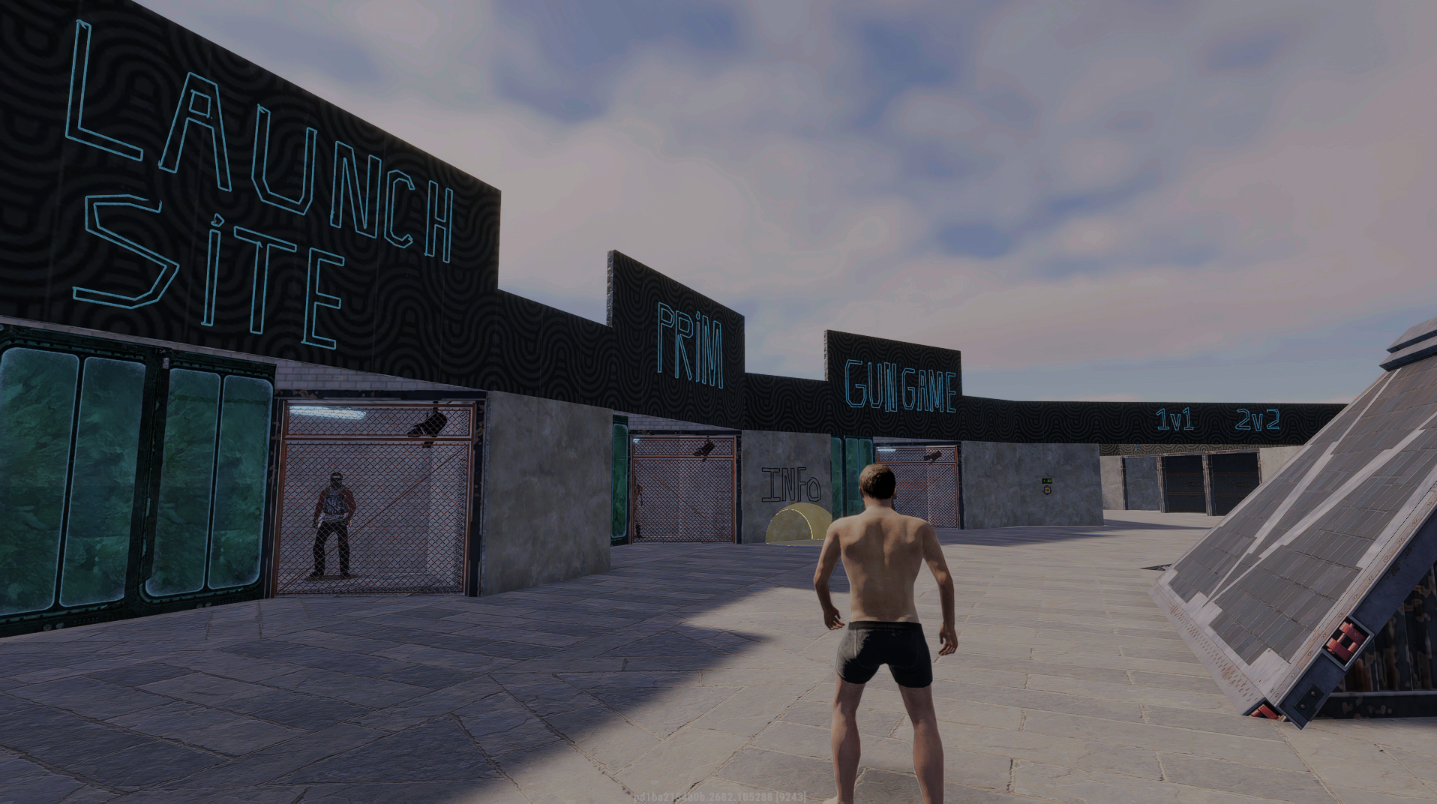
Each gamemode has its own area around the lobby. The large signs on the walls show the gamemode name, and the animated rugs underneath are designed to look like portals. Walk into the rugs area to join that gamemode which usually takes 1-3 seconds to teleport you. There is also a yellow area with INFO written above it. Walking into the INFO area will show the current status of one or more gamemodes and how many players are currently in them.
Using a gamemode quickchat
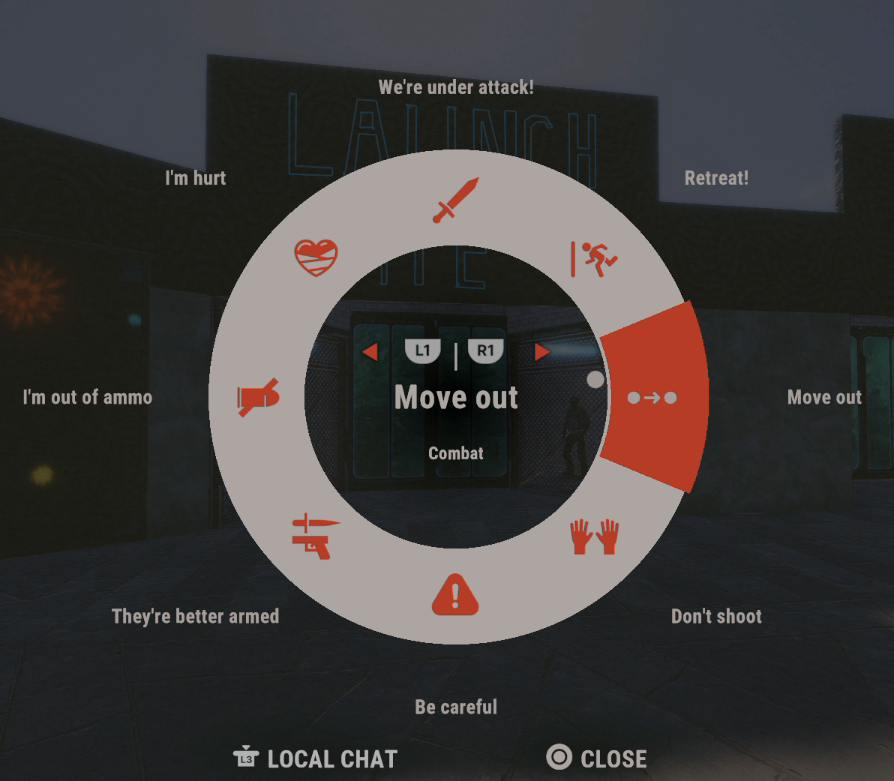
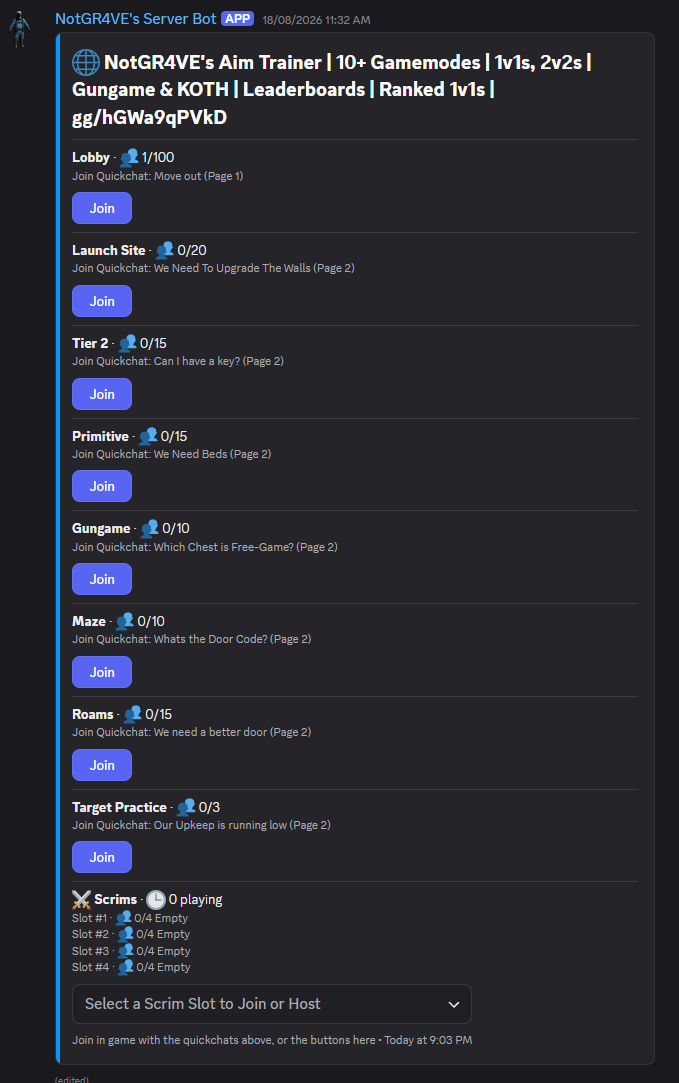
Every gamemode has its own quickchat used to join it. The quickchat name and page are shown in the NotGR4VE Discord gamemode list. Send the quickchat in Local Chat or Team Chat. Quickchats sent in Server Chat are ignored. This prevents join quickchats from being picked up as server wide spam.
From Discord
Open the NotGR4VE Discord gamemode list and press Join next to the gamemode you want. If the gamemode is full, you may be placed into its queue. Scrims are slightly different. Use the dropdown at the bottom of the list to choose the scrim slot you want to join or host.
From the website
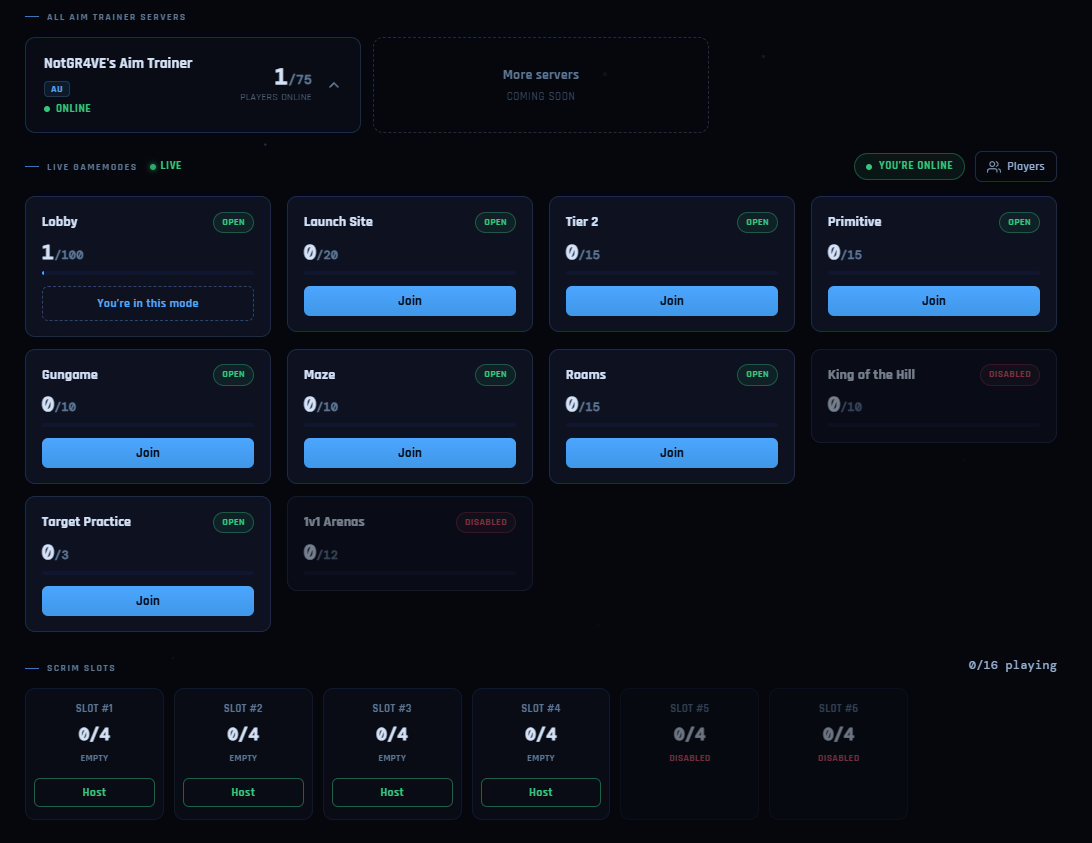
Open the Aim Trainer page and expand the server card. The live gamemode list shows which modes are open, full or disabled. Press Join on the gamemode you want.
How to leave a gamemode
To return to the lobby from any gamemode, press the right joystick down to open the quickchat wheel. Select Move out on Page 1, then send it in Local Chat or Team Chat. You will be teleported back to the lobby.